GoGoBambino for nannies: the how-to guide
How to join your families, see your shifts, log the day, hand over and keep track of your hours. It is free for you.
Download this guide as a PDF to print or share. Questions? Email support@gogobambino.app.
1 Install the app
GoGoBambino is free for nannies on iPhone and Android.
- Download GoGoBambino from the App Store or Google Play.
- Enter your email address. We send you a sign-in link: there is no password.
- When the app asks “How will you use GoGoBambino?”, choose “I’m a nanny or childminder”.
- Add your name and phone number under “Your name and phone”, so the families you look after can call you.
2 Joining a family or an agency
There are three ways in. Whichever it is, each family’s record stays its own: nothing passes from one family to another.
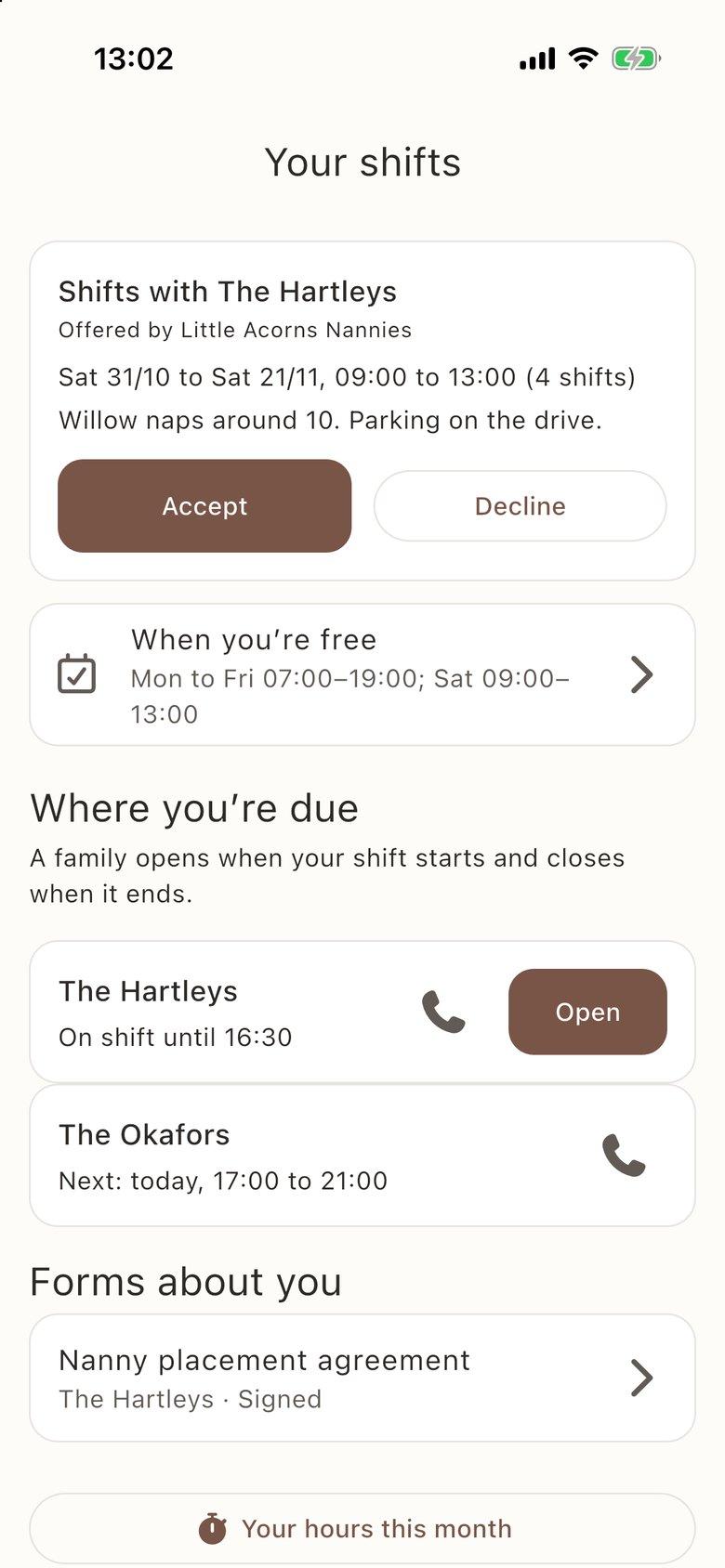
- A family invites you by email. Open the invite on your phone, or tap “I have an invite” on Your shifts and paste the link.
- An agency invites you to its team. The invite appears in the app: tap Join, or No thanks.
- An agency offers you shifts with a family. Accepting the offer adds you to that family.
Tip Looking after more than one family? Switch between them in a tap.
3 Say when you’re free
If you work through an agency, tell them when you can work, so they can match you with the right families.
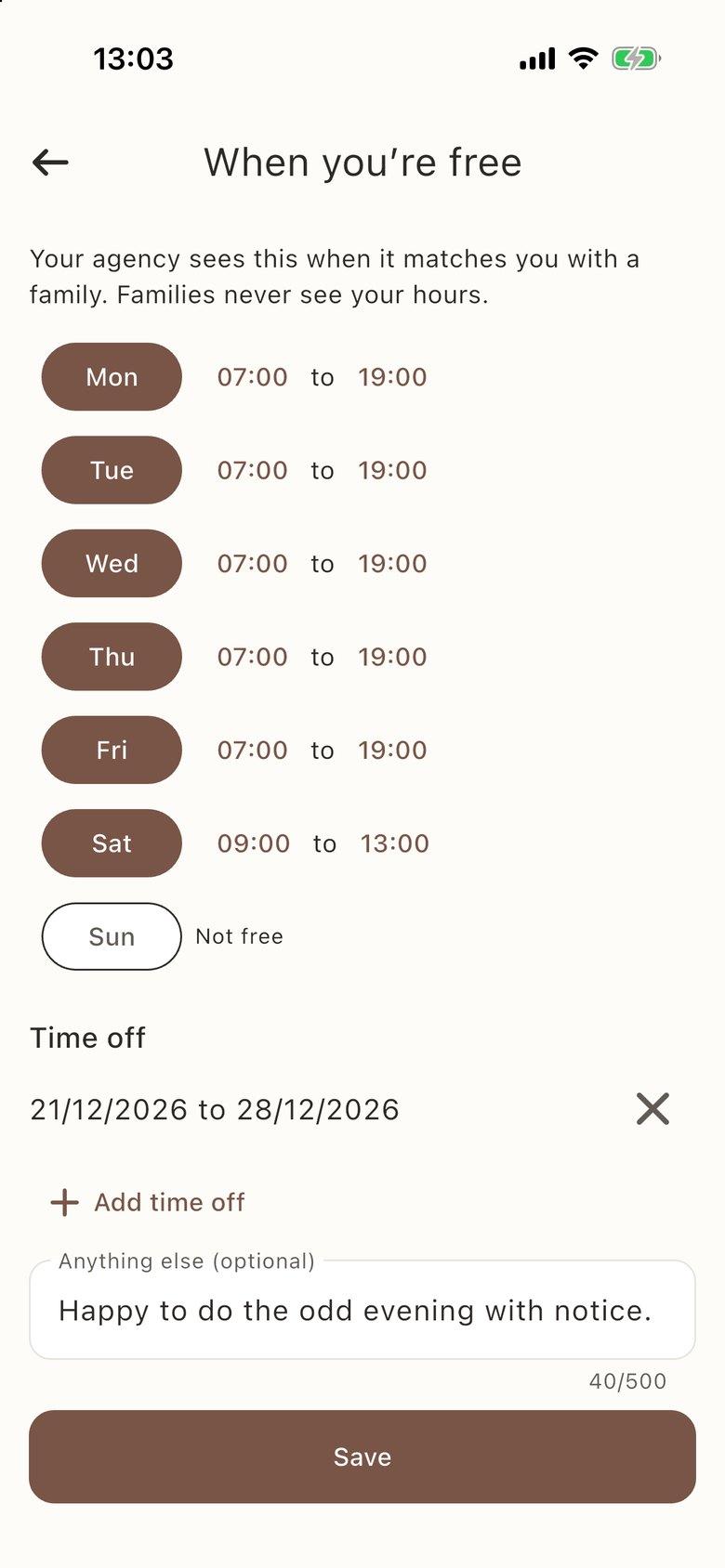
- Open Your shifts and find “When you’re free”.
- Tick your days and set your hours.
- Add any time off, and a line about yourself.
- Save. Your agency can see it.
- Families never see your hours. Only your agency does.
4 Accepting shift offers
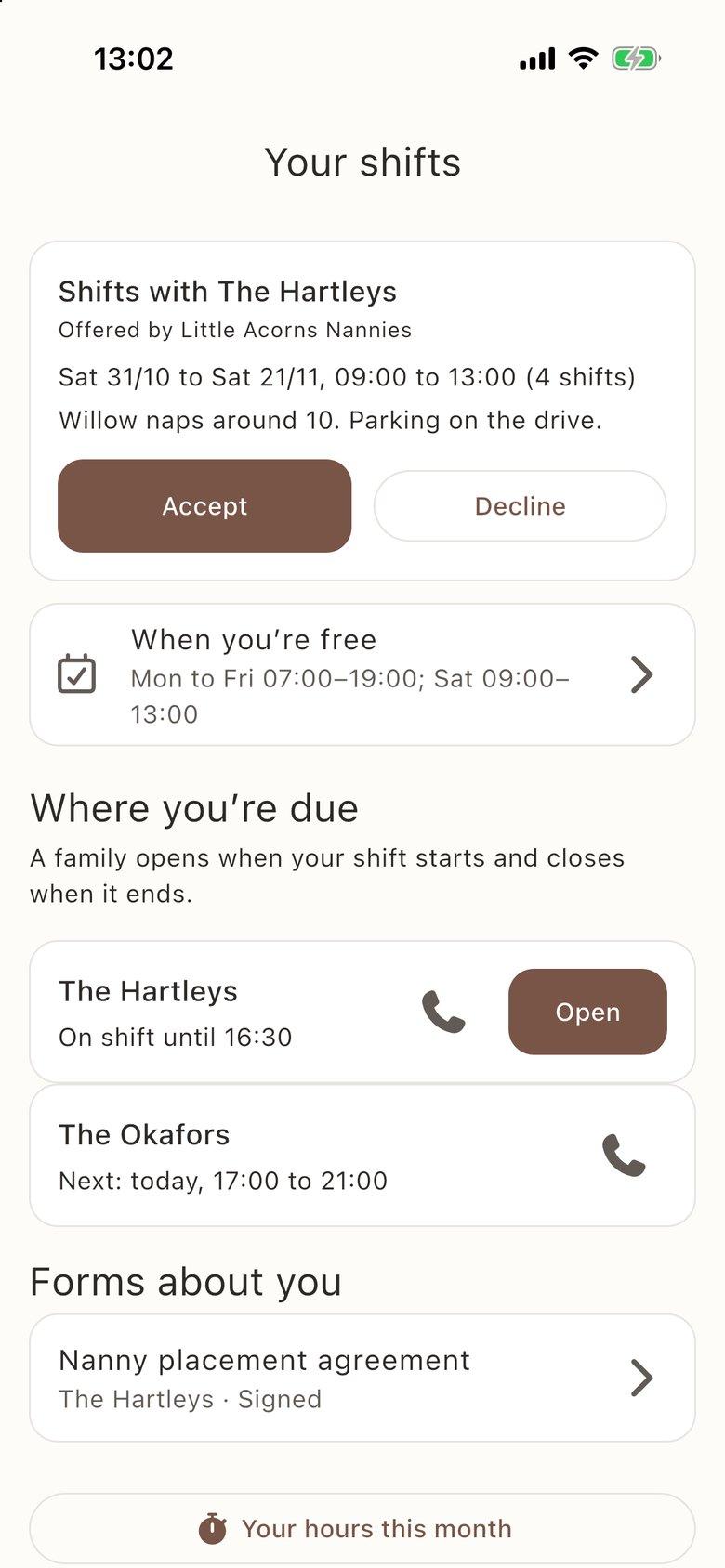
When your agency offers you shifts, the offer appears on Your shifts with the family, the days and a note.
- Read the offer.
- Tap Accept to take it, or Decline to say no. Nothing changes if you decline.
- Accepted shifts appear on your list, under “Where you’re due”.
- If an offer covers the same hours as another, the app tells you. Accept one, and the other closes.
- If you already have a shift at that time, the offer cannot be accepted. Ask your agency about it, or change your other shift first.
5 On shift
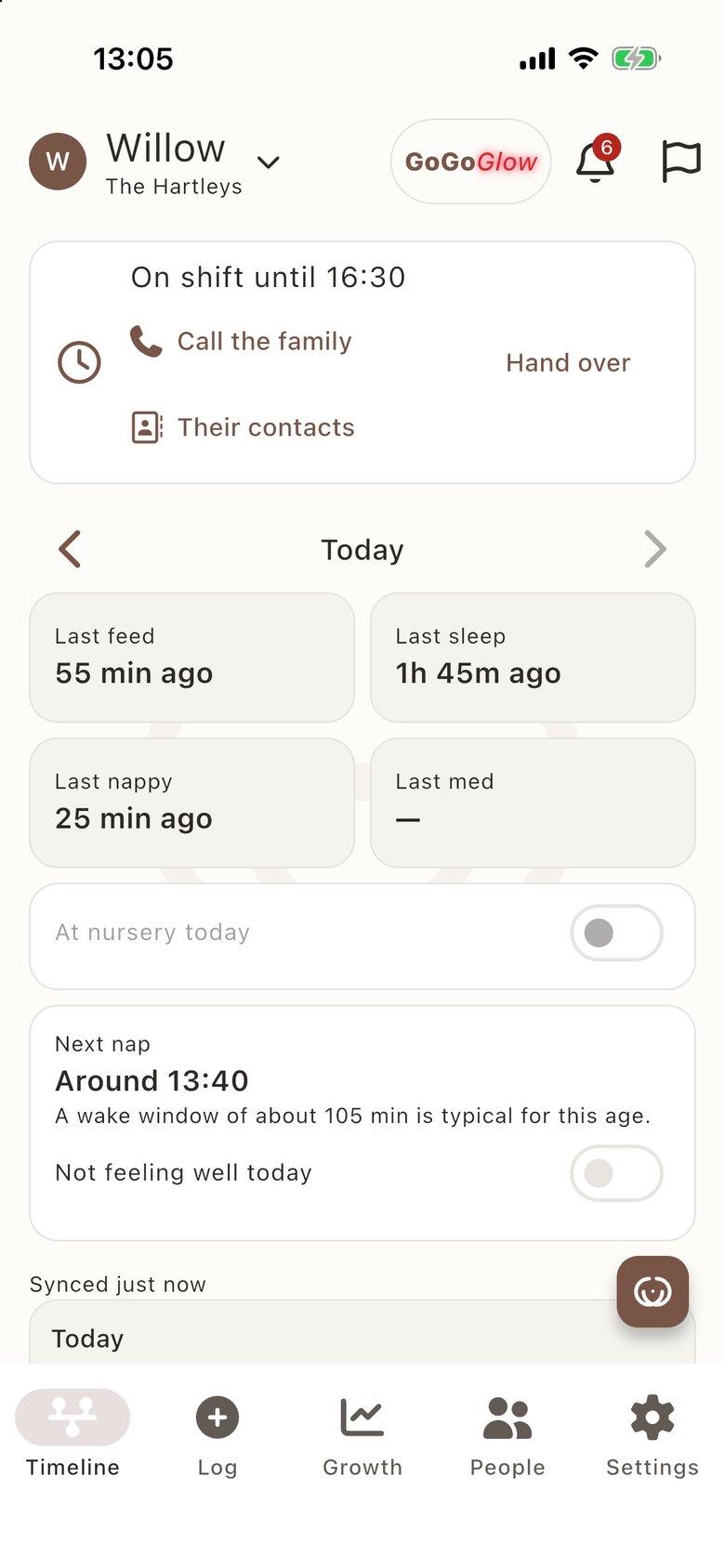
When your shift starts, the family opens. Today shows when your shift ends, and the day so far: the last feed, sleep and nappy.
- Read the family’s care notes: routines, allergies and feeding rules, in the parents’ own words.
- Log as you go from the Log tab. Feeds, sleep and nappies each have a big button, and milestones can have a photo.
- Each entry shows your name, so the parents know who logged it.
- Need someone? The parents’ numbers and the family’s saved contacts, such as the doctor, are on screen with a Call button.
Tip For anything urgent, call the parents, the baby’s doctor or 999. The app is a record, not medical advice.
6 Handing over
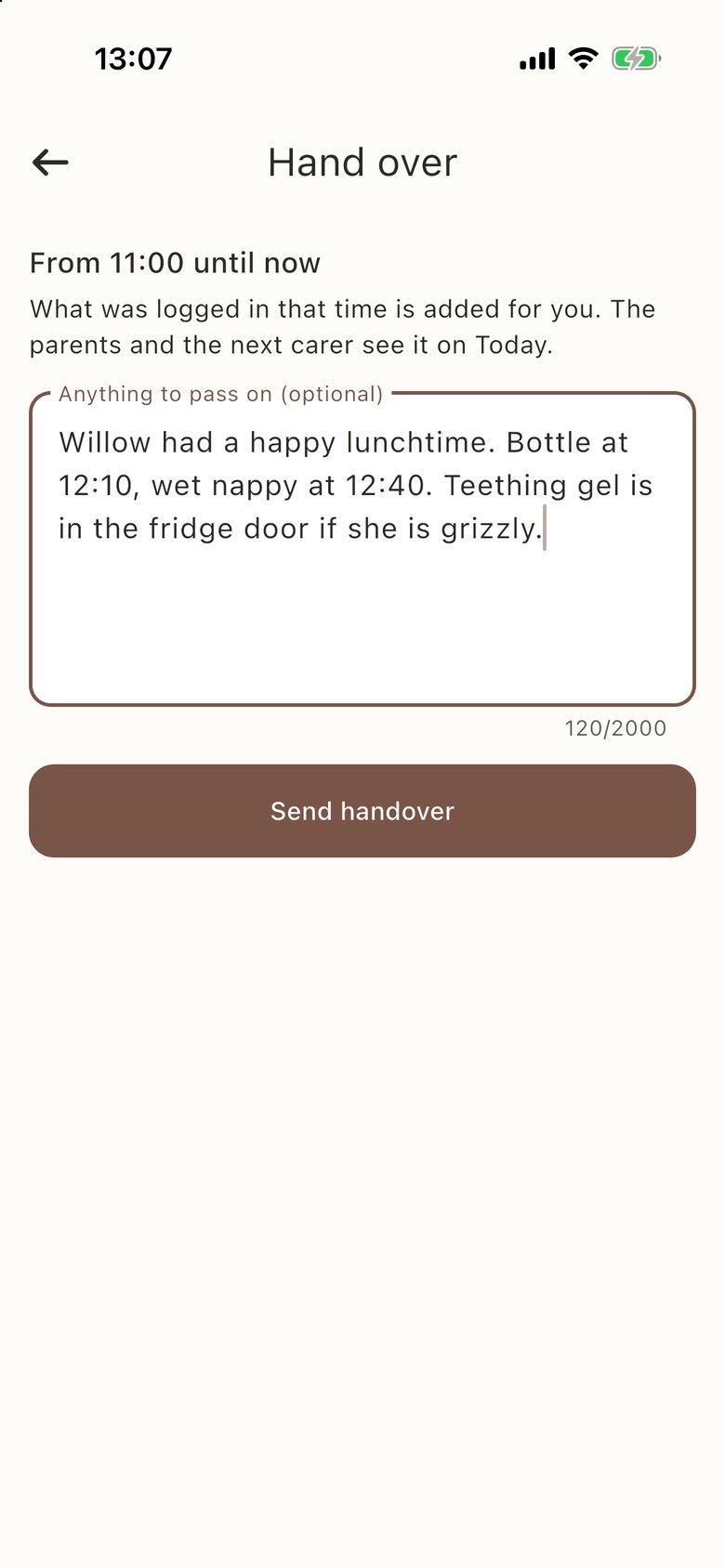
At the end of your shift, leave the parents a short handover. It takes a minute.
- Tap “Hand over”.
- Write a line or two: how the day went, anything to watch, anything to do next.
- Send it. What you logged during the shift is added for you.
- The parents are told straight away, and the parents and the next carer see it first on Today.
- You can edit or remove your note for 24 hours afterwards.
7 No signal? Log anyway
At the park, on the bus or in a basement: the app works without signal.
- Everything you log is kept on your phone and sent when you are back online.
- Entries from your shift still go through if you only get signal after the shift has ended.
8 Your hours and your calendar
Your shifts from every family, in one place.
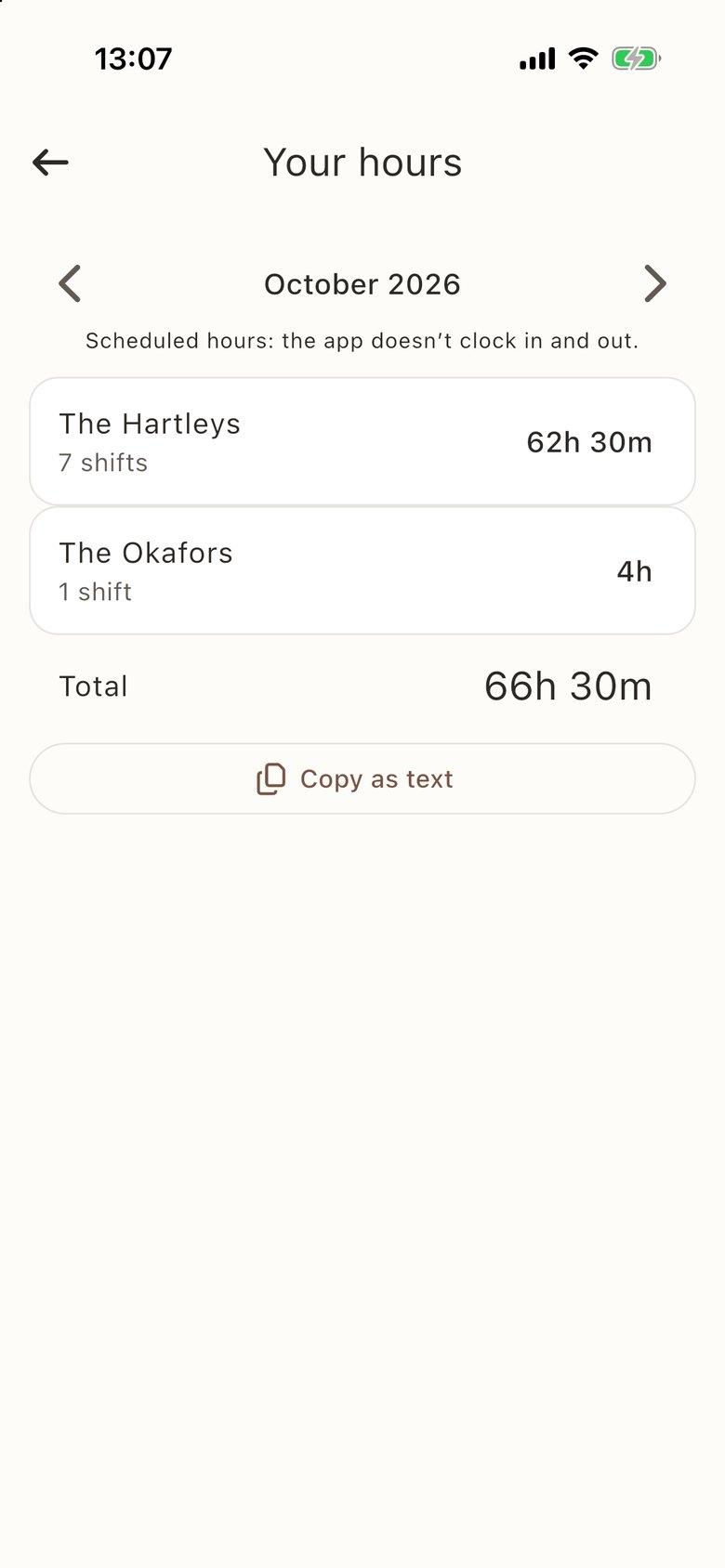
- Open “Your hours this month” to see your scheduled hours, family by family, with a total.
- Tap “Copy as text” and paste it into an invoice or a message.
- Under “Shifts in your calendar”, tap “Add to my calendar”. Every shift from every family appears in the calendar you already use, and follows any change.
- These are scheduled hours: the app doesn’t clock you in and out.
- Your calendar link is private. If someone else has it, make a new one.
9 Forms about you
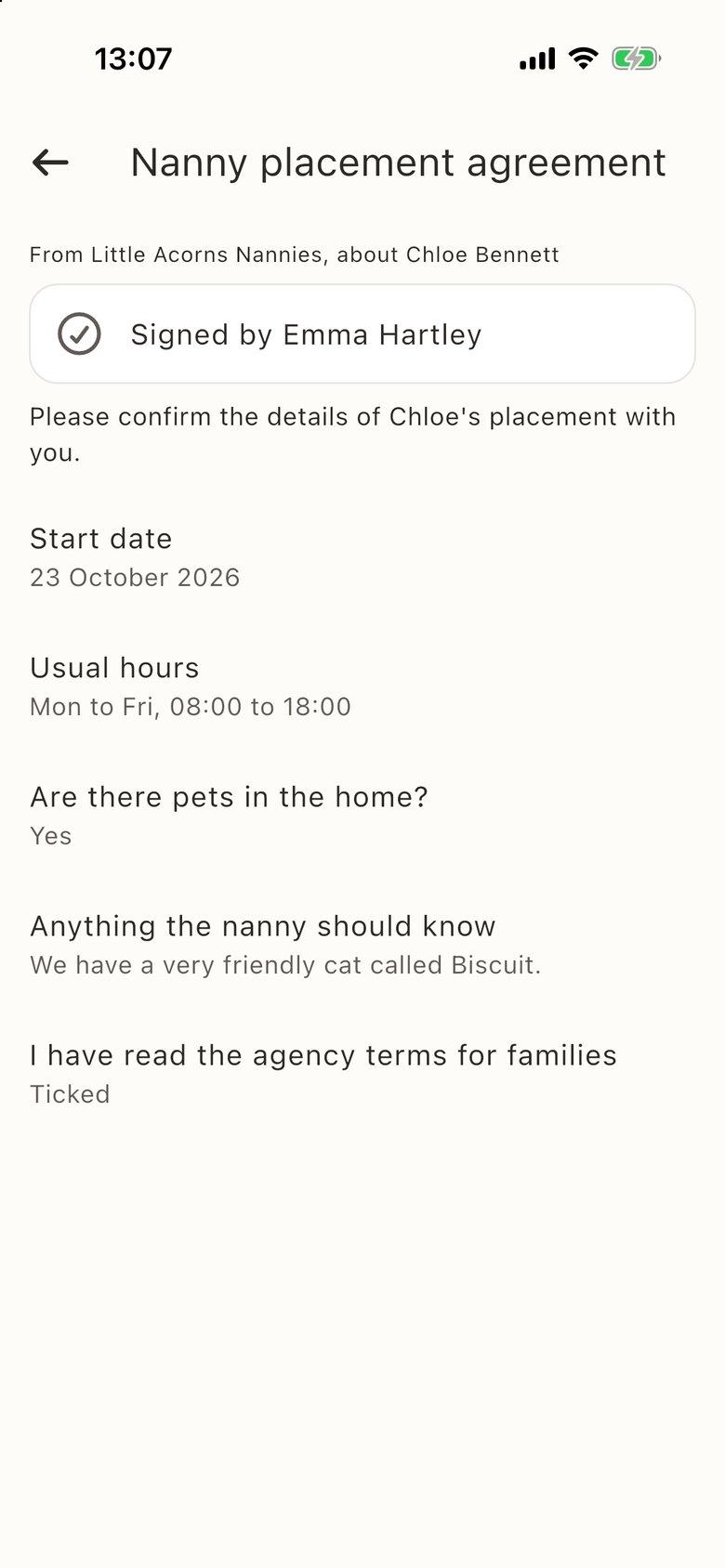
Your agency may ask a family to sign a form, such as a risk assessment. Under “Forms about you” you can see when it is signed. You see the answers if your agency chooses to share them.
10 What you can see, and why
Families give you their baby’s record to do the job well. The app shows you what you need for the shift, and keeps the rest private.
- On shift: the children you look after, and the last 48 hours of what was logged, so you know how the day has gone.
- Off shift: the family’s name and your shift times. The record opens again at your next shift.
- Never: the family’s whole history, reports, exports or insights. You cannot change the family’s contacts or children, or invite people.
- A family never sees your other families, and only your agency sees when you are free.
- What you log stays with the family if you stop working for them. It is their baby’s record.
11 For the parents: getting your nanny set up
Share this with the family if they have not used the app with a nanny before.
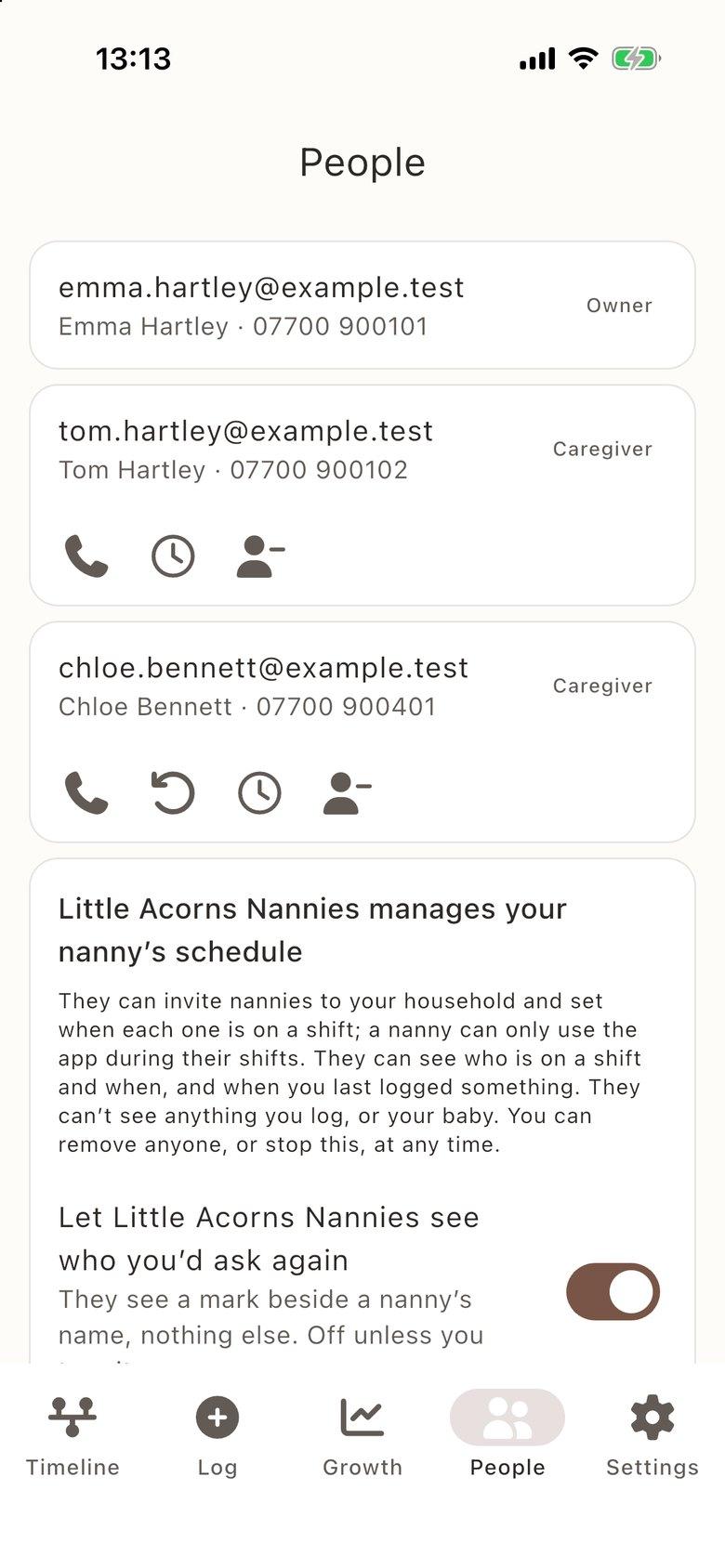
- Invite the nanny: open People, choose “Invite someone”, enter the nanny’s email and choose their role.
- Add the nanny’s shifts, and turn on “Only during shifts” so the record opens only while they are working (Premium).
- Using an agency? Under “Use a nanny agency?”, enter the agency’s code, then ask for care. The agency offers the shifts to a nanny.
- Add your own number, so your nanny can call you in a tap.
Questions
What does it cost me?
Nothing. Joining a family is free for you. The family, or your agency, looks after the plan.
Can a family see my other families?
No. Each household is separate.
Do I clock in and out?
No. Your shifts are set by the family or your agency, and your hours are worked out from them.
I changed phones. Is my history lost?
No. Sign in with the same email and everything comes back.
Is it medical advice?
No. GoGoBambino is a place to keep a record. For anything urgent, call the parents, the baby’s doctor or 999.