GoGoBambino for agencies: the how-to guide
Everything your HQ team needs to run families, nannies and shifts from one web page, and a checklist for training each new nanny.
Download this guide as a PDF to print or share. Questions? Email support@gogobambino.app.
1 Getting your agency set up
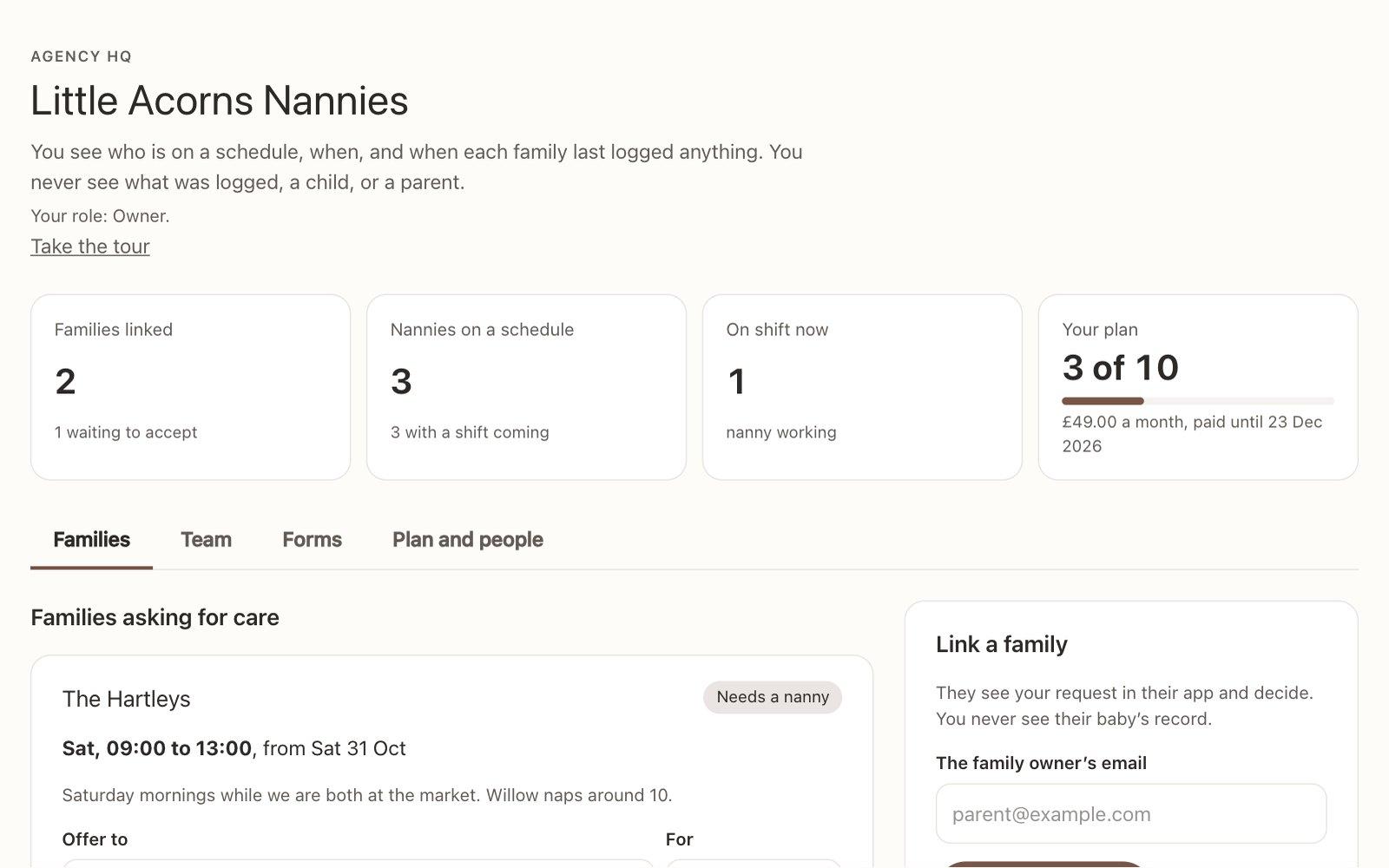
We set up each agency with you, so there is nothing to install. Your HQ is a web page you open in any browser, at gogobambino.app/agency.
- Email hello@gogobambino.app with your agency’s name and the email address of the person who will own the account.
- The owner signs in at gogobambino.app with that email. GoGoBambino sends a sign-in link: there is no password to remember.
- The first time HQ opens, the owner reads the agency terms and ticks to agree. HQ opens for everyone once they have.
- Choose “Take the tour” for a two-minute walk through each part of HQ.
Tip The tiles at the top show families linked and waiting, nannies on a schedule, who is on shift right now, and how much of your plan you are using.
2 Who can do what at HQ
Everyone at HQ has a role. Each role can do everything the one below it can, and HQ only shows the parts a person can use.
- An owner opens “Plan and people”, then “People at HQ”.
- Add a colleague by email and choose their role. They sign in with that email to see HQ.
- Owner: everything, including adding and removing people at HQ, the activity log and payment.
- Manager: families, the nanny team, forms, your agency code and the plan. Cannot change who is at HQ.
- Coordinator: offers shifts and sets nannies’ shifts. Cannot link families, run forms or change the team.
- Viewer: can look, and cannot change anything.
Tip An agency always keeps at least one owner, so HQ can never be left without someone in charge.
3 Building your nanny team
Invite each nanny you work with. Nannies are never counted in your plan, so add everyone.
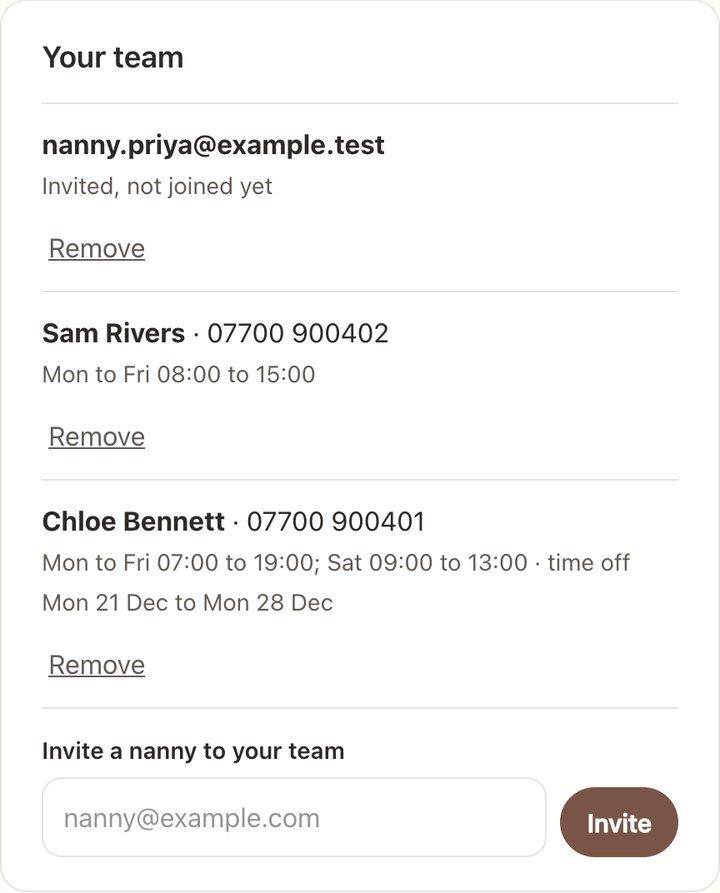
- Open the Team tab and find “Your team”.
- Enter the nanny’s email address and send the invite.
- The nanny installs GoGoBambino, chooses “I’m a nanny or childminder”, and taps Join when your invite appears.
- Once they have joined, the nanny fills in “When you’re free”: their days, hours, any time off and a line about themselves.
- You see each nanny’s name, number and free hours. Families never see a nanny’s hours.
4 Linking families
A family’s record belongs to the family. Linking lets you schedule nannies with them; it never shows you what they log.
- Ask by email: on the Families tab, use “Link a family” with the email of the parent who owns the household. They accept in the People tab of their app.
- Or share your code: give the family the code under “Your agency code”. They enter it in their app under “Use a nanny agency?” and the link is live straight away.
- Families you have asked appear under “Waiting to accept” until they say yes.
- A family can stop sharing at any time from their app, and keeps their whole record.
- While your plan is paid, every family you link has Premium for everyone in it, parents and nanny.
5 Care requests and offering shifts
A linked family can ask you for care from their phone, with the days, the hours, a start date and a note. It arrives on your Families tab under “Families asking for care”.
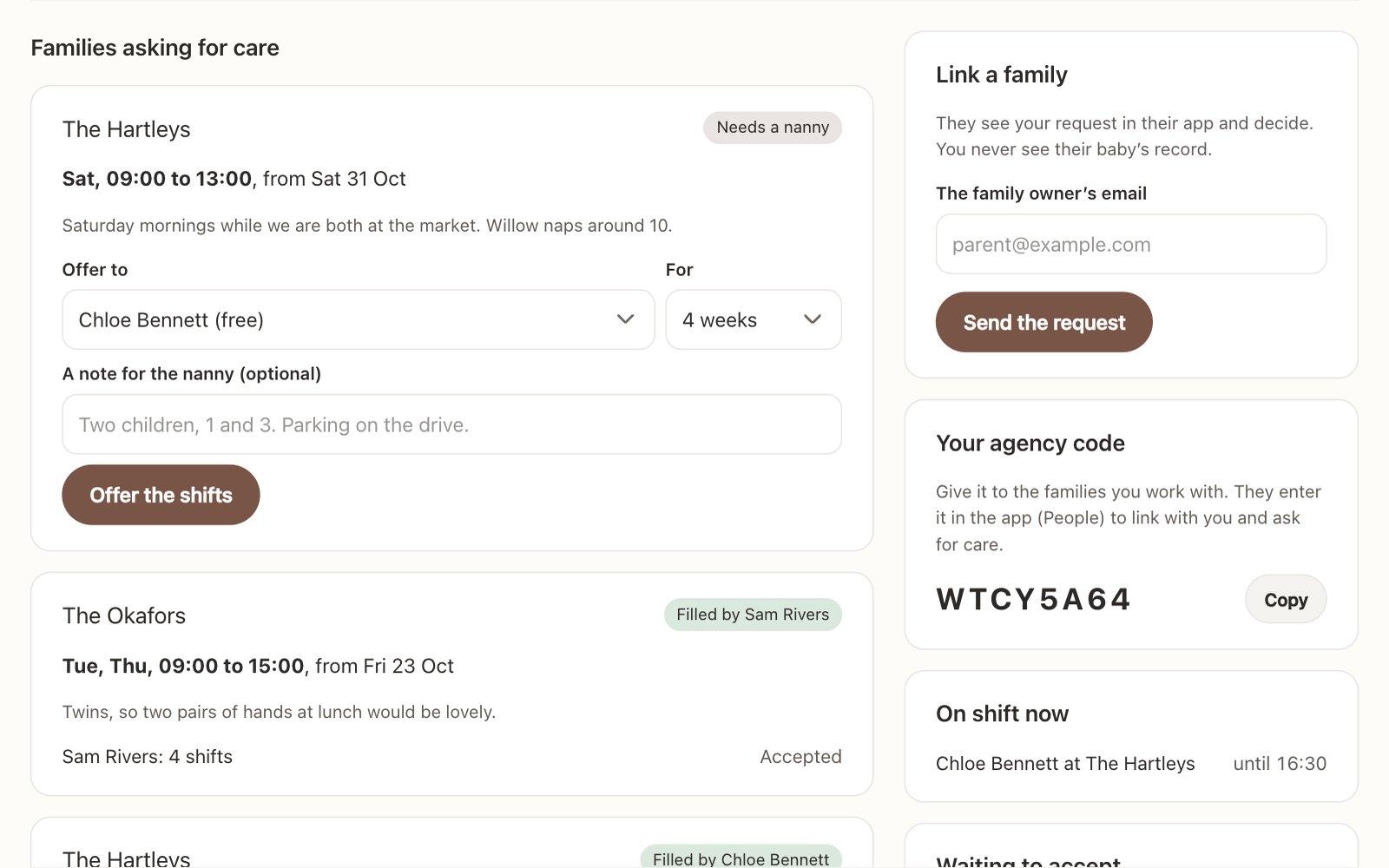
- Open the request. HQ lists the nannies on your team whose hours fit, and who has time off coming up.
- Choose a nanny and how many weeks to offer, from 1 to 12.
- Choose “Offer the shifts”. The offer lands on the nanny’s phone with the family and your note.
- When the nanny accepts, they join the family for those shifts and the parents and HQ are emailed. The shifts appear in everyone’s calendar.
- If a nanny declines, offer the request to someone else.
- If two offers cover the same hours, the nanny can only accept one. The other closes, and its agency is told the nanny took other work.
6 Changing shifts and letting a family go
Each family card on the Families tab shows the nannies on it, marked On shift, Next or No shifts, and when the family last logged anything.
- To change a nanny’s shifts, open the shift editor on the family card. Set one-off shifts or a weekly pattern.
- To add another nanny to a family, use “Invite a nanny” on the family card.
- If you stop working with a family, choose “Let this family go”. They keep everything they logged and carry on with the free plan.
Tip Coordinators can change shifts. Linking and letting families go needs a manager or an owner.
7 Team hours for payroll
The Team tab adds up each nanny’s scheduled hours for the month, nanny by nanny and family by family.
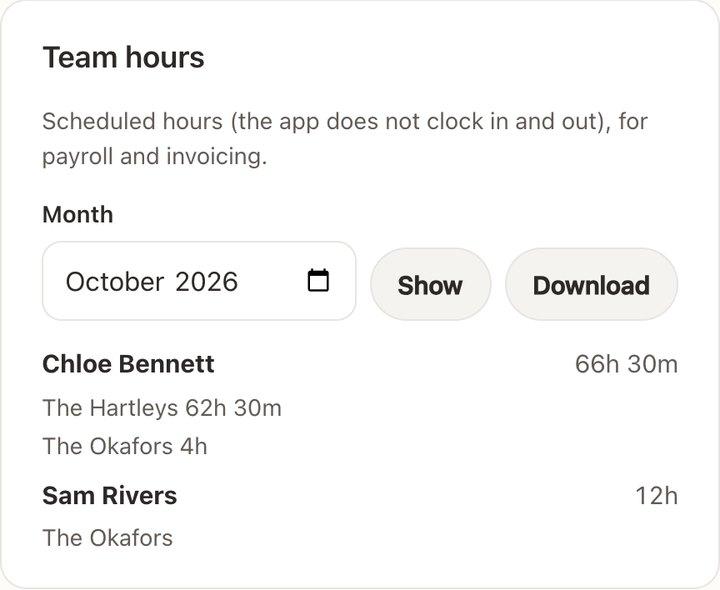
- Open the Team tab and find “Team hours”.
- Choose the month.
- Download the CSV and open it in your spreadsheet or payroll tool.
- These are scheduled hours. The app does not clock nannies in and out, so check them against any changes you agreed by phone.
8 Forms the family signs
Send a risk assessment, a consent form or anything else you need signed. Managers and owners only.
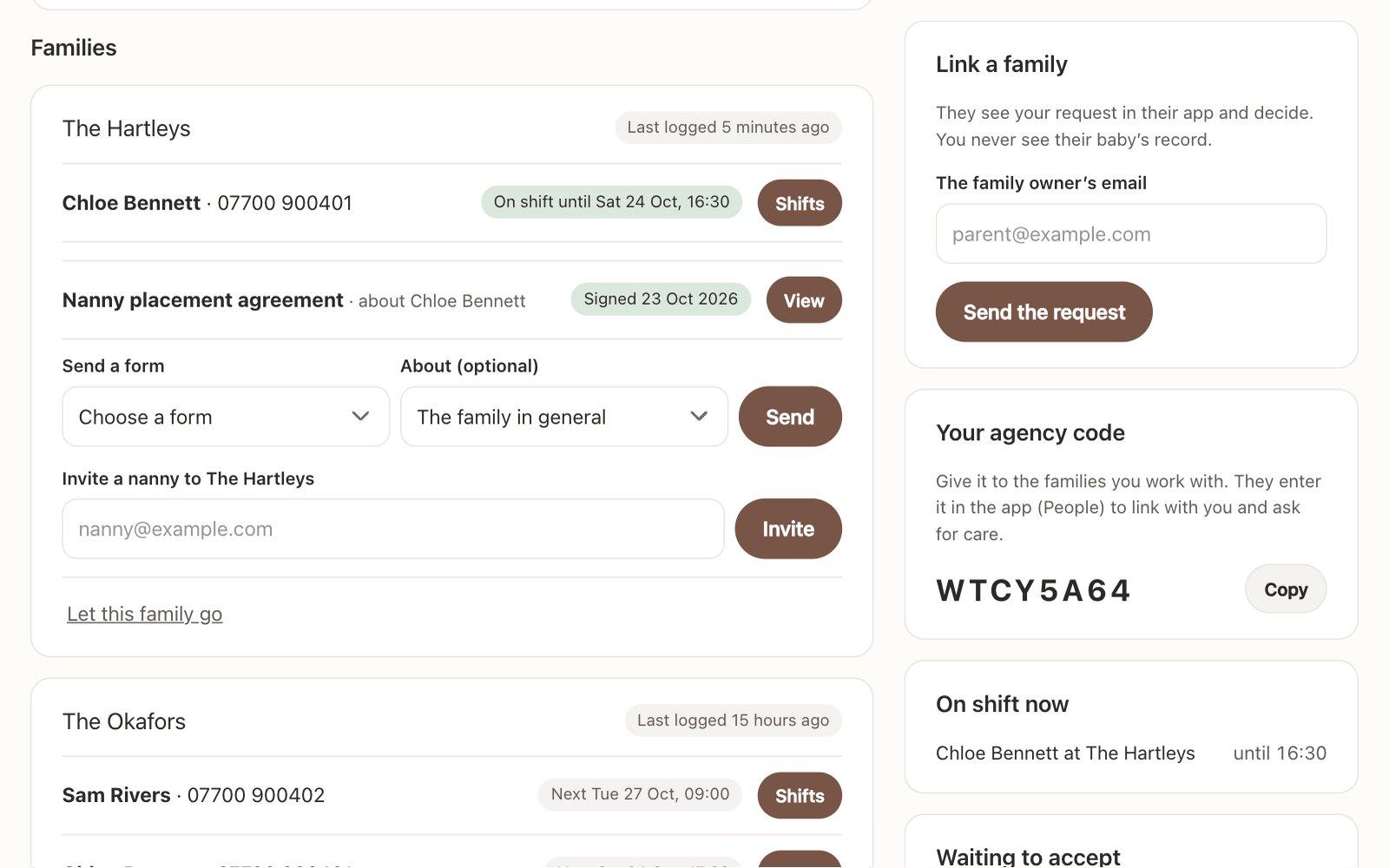
- Open the Forms tab and choose “Make a form”: write your own questions, or upload your own PDF.
- Send it to a family, about a nanny or about the household.
- The family reads and signs in their app. The signed copy is kept under “Your forms”, and you can print it.
- The nanny sees that a form is signed, and sees the answers only if you choose to share them.
9 Your plan and payment
You pay for the families you link, not the nannies. A month: £49 for up to 10 families, £99 for up to 25 families, £179 for up to 50 families, £299 for up to 100 families. Above 100 families we price to fit.
- An owner opens “Plan and people”, then Payment.
- Choose “Pay by card”. You pay on Stripe’s secure page, and we never see your card. It renews each month until you cancel.
- To change the card, see invoices or cancel, choose “Manage billing”.
- Prefer to pay yearly? Email us: a year costs ten months, so two months are free.
- Need more families than your plan covers? Email us and we move you up a tier.
- We remind you 14 days before your plan ends.
- If a payment is late, families keep Premium for 7 days after the plan ends, so a shift is never cut off.
10 What HQ can and cannot see
Families trust you with their nanny, not with their baby’s record. HQ is built so that it never holds it.
- HQ sees: the families you link, which nannies are on a schedule and when, who is on shift now, and when a family last logged anything.
- HQ never sees: what was logged, a child’s name or details, a parent’s details, or the family’s photos.
- Owners see an activity log of what people at HQ have done.
11 Training a new nanny: a checklist
Walk each new nanny through these with their phone in hand. It takes about fifteen minutes. The nanny guide covers each step in more detail: give them a copy or the link gogobambino.app/help/nannies.
- Install GoGoBambino from the App Store or Google Play and choose “I’m a nanny or childminder”.
- Accept your agency’s team invite: tap Join.
- Fill in “When you’re free” and “Your name and phone”.
- Accept a shift offer, and see the shift appear on “Your shifts”.
- Turn on “Add your shifts to your calendar”.
- On a shift: read the care notes, find the parents’ numbers, and log a feed, a sleep and a nappy.
- Log one entry in flight mode, then turn signal back on and watch it sync.
- Hand over at the end of the shift with a short note.
- Find “Your hours this month” and “Copy as text”.
- Explain what the nanny sees off shift (the family’s name and shift times only) and on shift (the last 48 hours).
Tip For anything urgent, a nanny calls the parents, the baby’s doctor or 999. The app is a record, not medical advice.
Questions
Do nannies pay anything?
No. Joining a family is free for a nanny, whether they come through you or not.
Can one nanny work for several families?
Yes. Each family’s record stays separate, and the nanny switches between them in a tap.
Can a family use their own nanny as well as yours?
Yes. A family can invite anyone they like into their household. You only see the nannies you scheduled.
What happens to a family if we stop working together?
They keep everything they logged and carry on with the free plan.
Is it on phones as well as the web?
HQ is a web page and works on a laptop, tablet or phone browser. Nannies and parents use the phone app.
Is it medical advice?
No. GoGoBambino is a place to keep a record of a baby’s day.